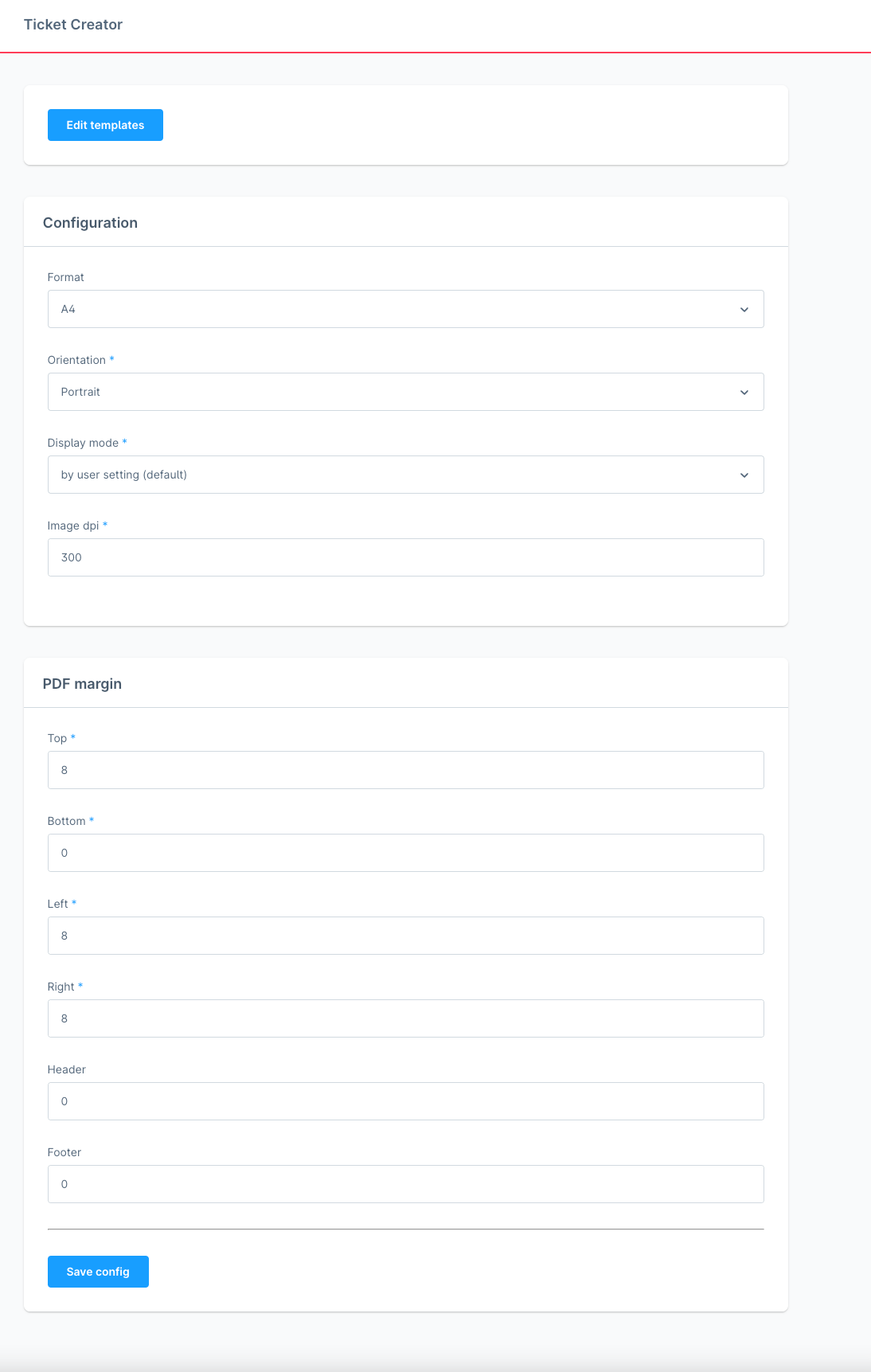
Pdf settings
Configuration
Format
In mPDF, "Format" refers to the page size of the PDF document. This parameter allows you to specify a predefined page size for the entire document or individual pages. Here's an overview of what each of these formats means:
- A0, A1, A2, A3, A4, A5, A6, A7, A8, A9, A10
- These are standard paper sizes according to the international standard ISO 216. A4 is probably the most commonly used size for documents. The sizes decrease (A0 is the largest, A10 is the smallest) with each size being half the size of the previous size when the paper is folded in half.
- Letter, Legal, Executive
- These are traditional paper formats mainly used in the United States and Canada. "Letter" is the standard size for personal and business correspondence, "Legal" is slightly longer and often used for legal documents, and "Executive" is smaller and frequently used for printing business documents.
- Folio, Demy, Royal
- These formats are less standardized and are used for specific types of publications or prints. "Folio" is typically used for books, "Demy" and "Royal" are sizes often used in book printing for various kinds of books.
- Type A paperback 111x178mm, Type B paperback 128x198mm
- These specifications give specific dimensions for paperback books, where "Type A" and "Type B" represent different sizes that are commonly used in publishing.
Orientation
In mPDF, "Orientation" refers to the page orientation of the created PDF document. This setting determines how the pages are oriented when they are displayed or printed. Here are the meanings of the two basic orientations:
- Portrait
- This orientation means that the page is oriented vertically, with the longer side running vertically. It is the standard orientation for most documents, such as letters, official documents, and many books, where the text flows from top to bottom.
- Landscape
- In this orientation, the page is oriented horizontally, with the longer side running horizontally. This orientation is often used for documents that require a wider view, such as tables, charts, plans, or when content needs to be displayed that would otherwise not fit in the standard vertical orientation.
Display mode
In mPDF, "display mode" determines how the PDF document will be displayed upon opening it in a PDF viewer or reader. This setting affects how the PDF pages are automatically adjusted or zoomed for comfortable reading. Here are the meanings of each option:
- by user setting (default)
- The PDF will be displayed according to the user's default settings in the PDF viewer. This means that no specific zooming or page adjustment is applied, and the document will be displayed as preferred by the specific user or device.
- real page size (real)
- real page size (real): Displays the PDF pages at their actual size, as if they were printed. This setting is useful when you want the content to be displayed exactly according to its physical dimensions, which can be important for documents where dimensions are critical, such as plans or technical drawings.
- fit by whole screen (fullpage)
- fit by whole screen (fullpage): Automatically adjusts the entire page to fit the whole screen without the need for scrolling. This is suitable for viewing the overall structure of the document or when an overall view of the page is preferred over detailed viewing.
- fit by screen width (fullwidth)
- fit by screen width (fullwidth): Adjusts the width of the PDF page to exactly fit the screen width, which may require scrolling up and down to view the entire page. This option is ideal for reading lengthy textual documents, where text readability and minimizing the need for horizontal scrolling are important.
Image dpi
In the context of creating PDFs with mPDF, "image DPI" refers to the dots per inch (DPI) setting used for images within the PDF document. DPI is a measure of the resolution or clarity of an image, representing the number of individual dots that can be placed within a linear inch. In digital printing and digital documents, a higher DPI value typically indicates a higher resolution and sharper image quality.
PDF margin
In the context of creating PDF documents, including the use of mPDF, the terms related to PDF margins refer to the distances between the content of the document and its edges. These margins are important for defining space for text, images, and other document elements, as well as allowing sufficient space for printing.
- Top
- The distance between the top edge of the page and the beginning of the document's content.
- Bottom
- The distance between the bottom edge of the page and the end of the document's content.
- Left
- The distance between the left edge of the page and the document's content.
- Right
- The distance between the right edge of the page and the document's content.
- Header
- The space reserved at the top of each page for the document's header. This margin can be set separately from the top margin, allowing for the definition of space for text or images to be displayed in the header on each page.
- Footer
- Similar to the header, the footer is the space reserved at the bottom of each page for the document's footer. This margin allows for the placement of text or other elements that are to be repeatedly displayed at the bottom of each page.